Customize the Admin interface
The Admin interface can be customized using attributes configured in Brands.
To add, remove, or modify attributes for a brand, log in to the Admin interface and navigate to System > Brands > Other global settings > Attributes.
Most attributes defined in a brand apply to both the User and Admin interfaces. However, any settings that are specific to only the Admin interface are explicitly noted as such below.
The following screenshot shows the syntax for setting several attributes for a brand: dark mode, a 3-column display of applications on the Application Dashboard page of the User interface, and hiding the API and Notifications drawers from the Admin interface toolbar.
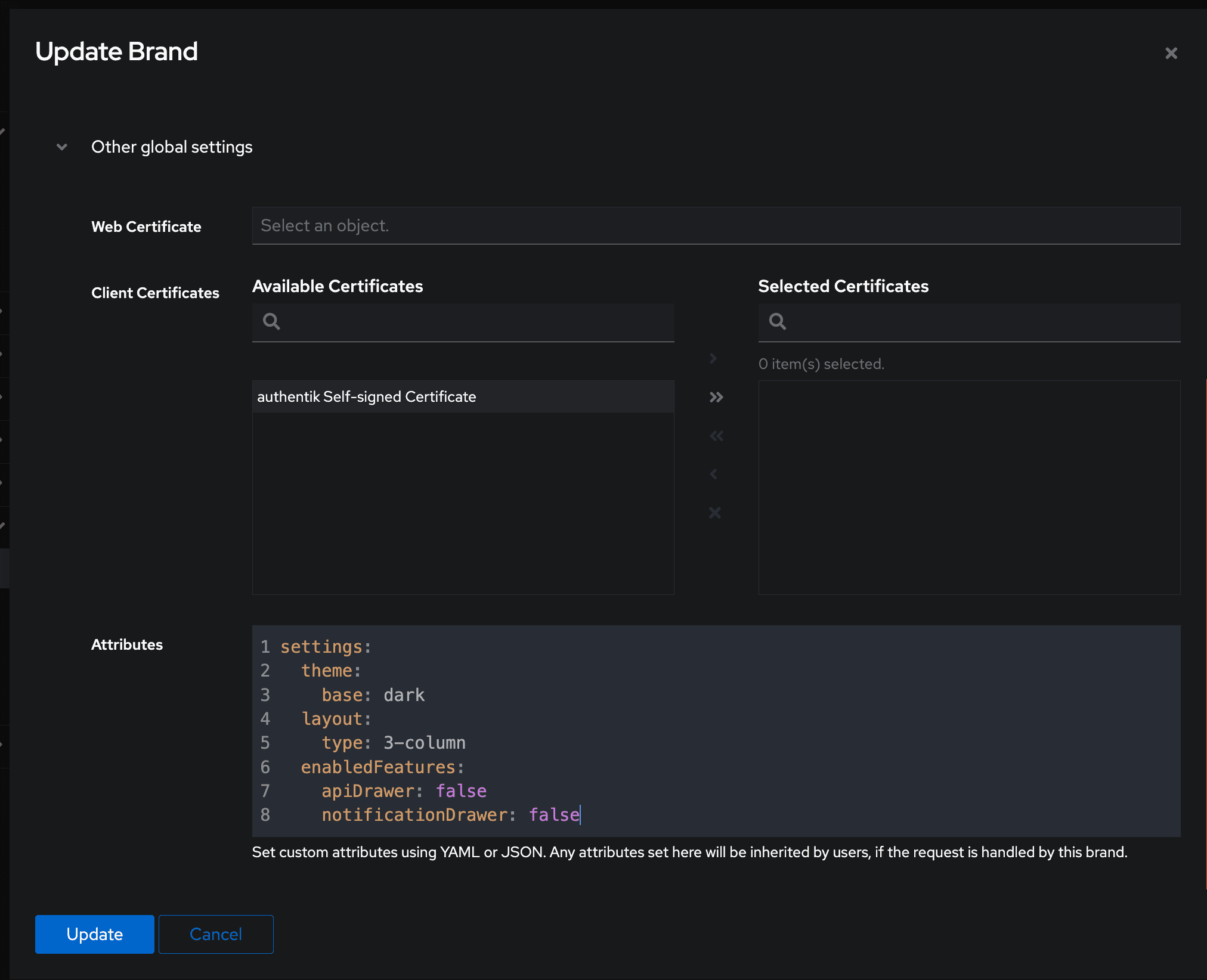
Custom settings
The following settings for attributes are grouped by:
enabledFeaturessettings- General settings (used on both the Admin interface and the User interface)
- Admin interface only
Enable or disable features
The features listed below can be enabled or disabled through attributes set on the Brand. By default, all of the listed features are enabled. To disable a specific feature, set its value to false.
settings.enabledFeatures.apiDrawer
Display the API Request drawer in the upper toolbar.
settings.enabledFeatures.notificationDrawer
Display the Notification drawer in the upper toolbar.
settings.enabledFeatures.settings
Display the Settings link in the upper toolbar.
settings.enabledFeatures.search
Display the Search bar in the upper toolbar.
General settings (both Admin and User interfaces)
settings.navbar.userDisplay
Configure what is shown in the top-right corner. Defaults to username. Available options: username, name, email
settings.theme.base
Configure the base color scheme or toggle between dark and light modes. The default setting is automatic, which adapts based on the user’s browser preference. Available options: automatic, dark, light.
Example:
settings:
  theme:
    base: dark
settings.theme.background
Optional CSS that is applied to the background of the User interface, for example to set a custom background color, gradient, or image.
settings:
    theme:
        background: >
            background: url('https://picsum.photos/1920/1080');
            filter: blur(8px);
            background-position: center;
            background-repeat: no-repeat;
            background-size: cover;
settings.locale
The locale used by the interface. Set this on the default brand to configure the language instance-wide, or on user and group attributes to configure defaults for specific users or group memberships. Users can still choose their own preferred locale in user settings.
Example:
settings:
    locale: en
Settings for the Admin interface only
The following settings can only be used to customize the Admin interface, not the User interface.
settings.pagination.perPage
How many items should be retrieved per page. Defaults to 20.
settings.defaults.userPath
Default user path which is used when opening the user list. Defaults to users.
Global customization
To customize the following brand settings, log in to the Admin interface and navigate to System > Brands > Brand settings.
- Title
- Logo
- Favicon
- Default flow background image
- Custom CSS
For more details, see the Brand settings documentation.